Read a result card
On this page
A result card is one article in your search results. Besides the headline, it tells you who published the article, how old it is, how long it is, how positive it reads and where it sits among 4Search's topics. You can judge a result before you open it.
#The parts of a card
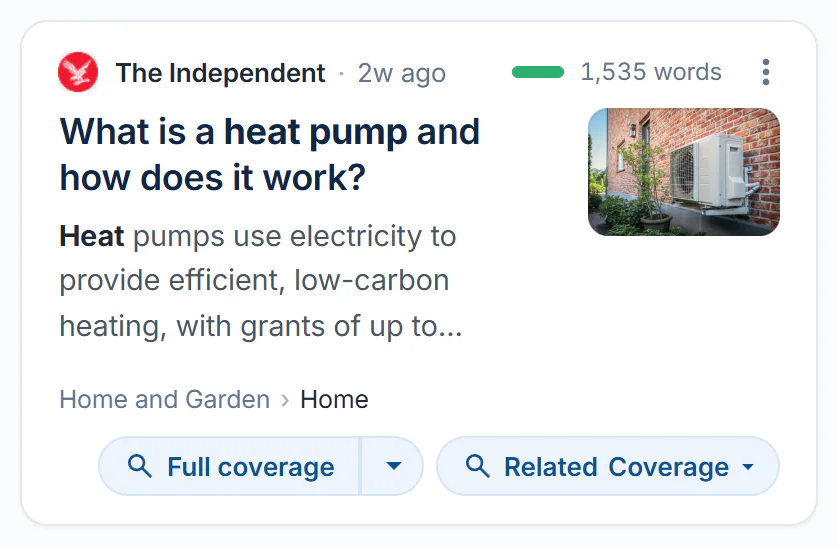
One News result card, with its parts numbered.
- 1Source, age and website
- 2Tone bar and length
- 3Options menu
- 4Headline, summary and picture
- 5Topic path
- 6Full coverage and Related Coverage
#1. Source, age and website
The source line begins with the site's icon and name. Select the name to see that website's profile and its articles: see Find a website.
The age follows: just now, 5m ago, 3h ago, 2d ago or 3w ago, and after about a month a date such as Jun 22, with the year when it is not this year. Hover over the age to see the exact date and time. The age is the publication date. When an article has none, it is the day 4Search found it.
The grey address at the end is the page the article is on. It disappears when the card is too narrow for it.
#2. Tone bar and length
The small bar shows tone: how positive the article reads. The green part is the positive share, the red part is the rest. Hover over it for the words, for example Tone: positive (100% positive). A bar 70 percent or more green reads as positive and 30 percent or less as negative. Anything between is neutral.
Tone is an automatic estimate of the wording. It is a hint, not a judgment of whether the article is fair or true, and some articles have no tone bar at all.
The number beside it is the article's length in words: the text 4Search indexed for it. Hover over it to read Length of the indexed text. It can be shorter than the page itself. You can filter results by this number and by tone: see Narrow results with filters.
#3. Options menu
The three dots open a small menu:
- Share this URL opens a window for sharing the article's address by email or on social sites, or copying it. See Share or bookmark a search.
- Search this website repeats your search inside that source only.
#4. Headline, summary and picture
The headline opens the article in a new tab. The summary shows short pieces of the article around your words, in bold, joined with .... A picture appears when the article has one. It opens the article too.
#5. Topic path
The path, such as Home and Garden › Home, shows where 4Search filed the article among its topics. Each step is a link that opens that topic's page. See Topics. Some articles have no path.
#6. Full coverage and Related Coverage
Full coverage searches the whole index for other reports with a similar headline. Its arrow opens a menu to narrow that to one topic. Related Coverage searches for articles that share the people, places, organizations or keywords of this one. See Full coverage and Related Coverage.
#Other cards
- Web results have a source line, a title and a snippet. See The Web column.
- Websites cards describe a whole site. See Find a website.
- Image and video cards show the picture or video first. See Search images and videos.
- Story cards on the front page also show how many outlets carry a story. See The front page.
#Common questions
Why does a card have no picture?
Not every article has one, and a picture that fails to load is removed. The card still works the same way.
Why does a card have no tone bar?
Tone is an automatic estimate and not every article has one. When you filter by sentiment, articles without a tone are left out.
What do the words mean in "1,535 words"?
The length of the article text that 4Search indexed. Hover over the number to see Length of the indexed text.
Why does a card show an old date?
The age is when the article was published. On Auto, an older article can appear when it matches your search better than newer ones. See Choose a time window.
Can I see how many outlets cover a story?
Front-page story cards show that count. On a search results page, use Full coverage on a card to list other outlets' reports.